
The short version
Build the system before you choose the tool.
- CaptureNext 6–8 weeks
- SortEvent · task · note
- AssignOwner + backup
- CheckNext 7 days
Keep it simple: Google or Apple is enough when your household can maintain a shared calendar manually. Add more only when inputs and handoffs become the hard part.
The real problem
A school schedule starts before a date reaches the calendar.
On Tuesday night, one parent finds an early-dismissal notice in the school newsletter. The other has a screenshot from the team chat with Saturday’s game time. There is a permission slip on the kitchen counter, a late work meeting on Thursday, and no clear answer to the most important question: who is handling pickup?
That is an information-to-action problem. A useful school schedule gives everyone one view, a visible owner, the relevant details, and a short routine for catching changes.
The family system
From notice to plan.
Capture
Dates & changes
Place
Event · task · note
Assign
Owner & backup
Check
Next 7 days
Step 1
Give dates, tasks, and details different homes.
The quickest way to make a family calendar unusable is to put every school detail into it as an event. A date, a task, and a document are different kinds of information. Give each one a clear home.
| If the information… | Put it here | Example |
|---|---|---|
| Happens at a specific time or changes where someone needs to be | Calendar event | Early dismissal, practice, parent-teacher conference |
| Must be completed before a date | Task with an earlier reminder | Sign a form, pay a fee, pack cleats |
| Needs to be available on the day | Event note, attachment, or link | Parking instructions, school map, coach’s message |
Use one simple rule: if missing it changes the family’s day, put it on the calendar. If someone must do something before it, create a task. If someone will need context later, keep it with the event.
For a field trip, the date belongs on the calendar, the permission slip is a task, and the teacher’s note belongs with the event. Another adult can then step in without searching old emails.
Step 2
Collect the next six to eight weeks in one sitting.
Set aside 20 to 30 minutes to collect the next six to eight weeks. The goal is not perfect data entry; it is to stop important details from living in five different places.
| Source | Look for | Put into the system |
|---|---|---|
| School calendar or portal | No-school days, early dismissals, conferences | Calendar events |
| Newsletter, teacher email, or school app | Class events, spirit days, deadline changes | Event, task, or note |
| Paper flyer or permission slip | Trip details, fees, packing list | Task plus event attachment or note |
| Sports, music, or club schedule | Practices, games, rehearsals, locations | Event plus preparation task |
| Adult work calendar | Travel, late meetings, unavailable pickup windows | Availability or logistics event |
Keep a temporary intake place while you work: a shared note, an email label, or a folder of photos and links. Then decide what each item becomes.
Step 3
Build a view people can understand in five seconds.
Most families need fewer calendars than they think. Creating one for every teacher, school email, team, and adult makes the system harder to open and maintain.
| Calendar or color | Use it for | Example |
|---|---|---|
| One color for each child | That child’s school and activities | Maya’s recital; Theo’s science fair |
| Family logistics | Events that affect the household | Early dismissal; family travel |
| Adult availability | Work or travel that changes pickup coverage | Late meeting; business trip |
| Optional school-wide dates | Dates that matter but are not child-specific | No-school day; picture day |
Use separate calendars, colors within one calendar, or a mix. Ask: Which child is this for? Does it affect the household? Is an adult unavailable? In a quieter season, one shared calendar may be enough.
Google provides a family calendar to Google family groups and allows that calendar to be shared with other people; calendar owners can control what shared users can do.[1] Apple supports shared iCloud calendars and calendar subscriptions from published web addresses.[2] [3] These are useful foundations when your household is comfortable entering and maintaining events manually.
Step 4
Make responsibility visible.
A shared calendar can still leave one adult carrying the mental load if responsibility stays implicit. For any event that changes transport, childcare, work availability, or preparation, add the information another adult would need to take over.
Include
What the other adult needs
- Actual time and leave-by time
- Location, link, or attachment
- Pickup or attendance owner
Do not leave implicit
What creates the scramble
- Backup person if plans change
- What needs packing or preparation
- Who checks for updated instructions
| Field | Example: early dismissal |
|---|---|
| Time | 1:15 p.m. dismissal; leave by 12:55 p.m. |
| Pickup owner | Jordan |
| Backup | Casey, if Jordan’s meeting runs late |
| Prepare | Snack in backpack; after-school program is closed |
| Check changes | Casey checks the school app by 10:00 a.m. |
Step 5
Turn preparation into tasks before it becomes a last-minute problem.
Calendars show where people need to be. They do not always make sure the right things happen beforehand.
If a field trip is Friday morning, do not rely on a Friday event to remind someone about the permission slip. Create a Wednesday task, assign it, and make the deadline visible. If a game starts at 10:00 a.m., the calendar can show the game while a task says, “Pack uniform and water bottle Friday night.”
| Event | Preparation task | When to check it |
|---|---|---|
| Field trip | Sign form and pay fee | Two school days before the deadline |
| Picture day | Choose outfit and pack order form | The night before |
| Saturday game | Pack uniform, water, and snack | Friday evening |
| Parent conference | Confirm care for siblings | One week before |
The assignment matters as much as the reminder. “Remember to pack cleats” is not a plan if neither adult owns it.
Choose your setup
Use the simplest input method that fits your family.
You do not have to choose between a basic calendar and a full family organizer on day one. Start with the amount of coordination your household actually has.
Manual shared calendar
Google or Apple may be enough.
Choose it when events are manageable, adults can add updates, and the main job is seeing school dates beside work or personal commitments.
Published calendar link
Subscribe to a reliable source.
Some schools, teams, and groups publish calendar links. This can reduce repeat entry, but it does not assign the driver, leave-by time, or packing task.
Complex inputs and handoffs
Consider a family organizer.
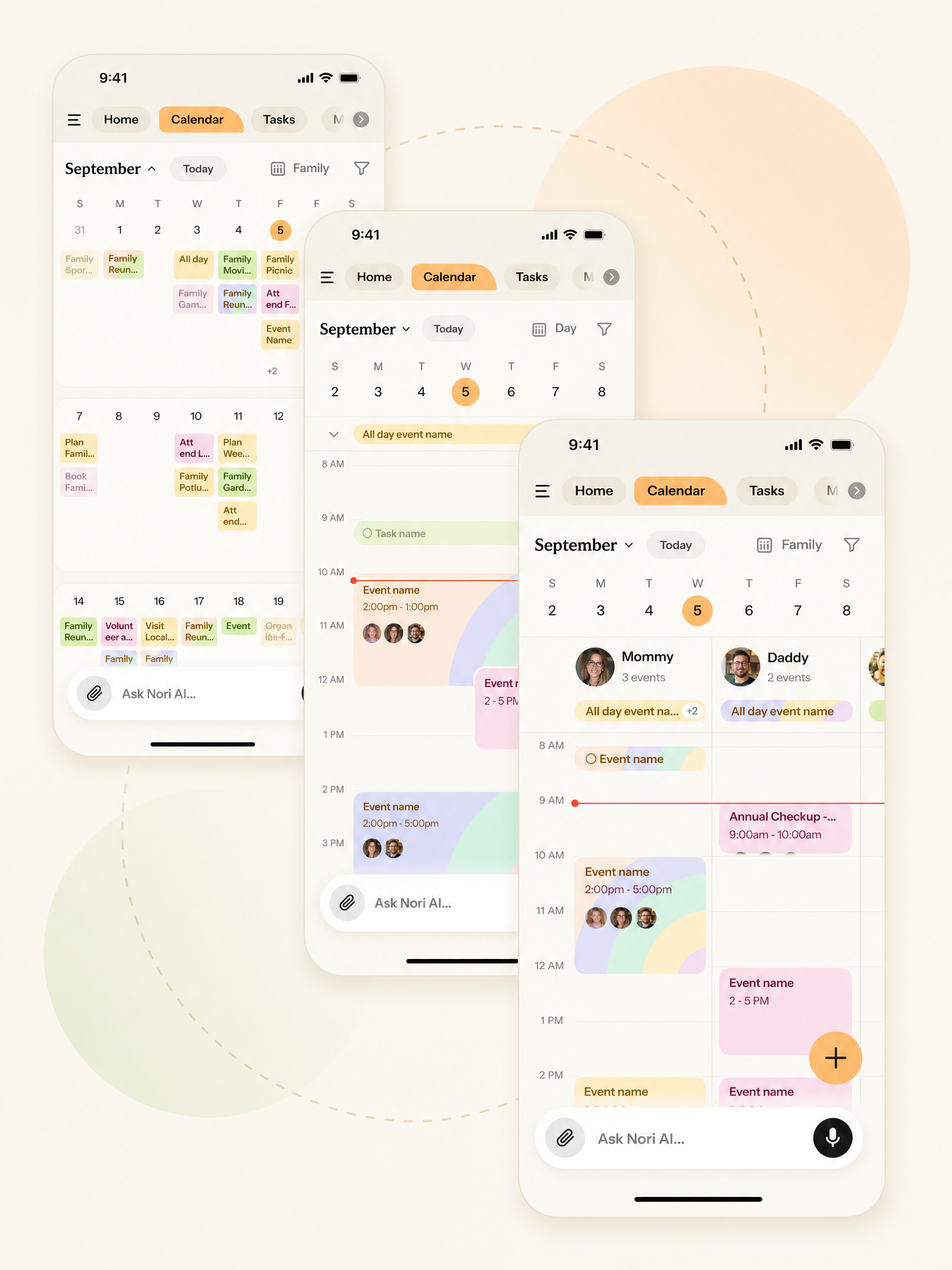
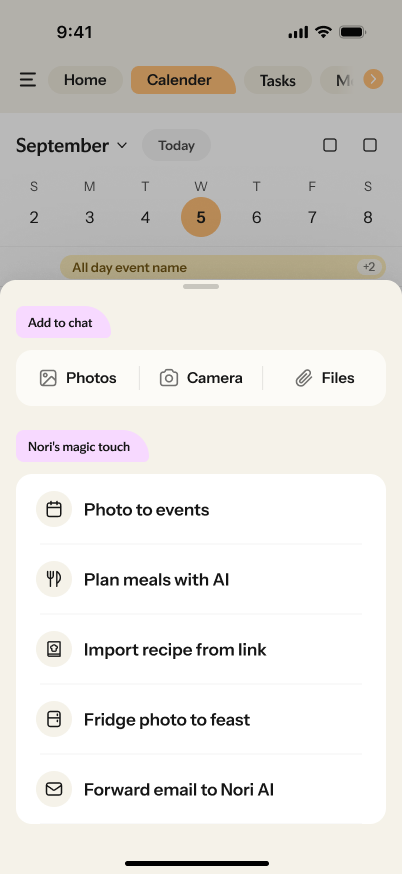
Nori is one option when information arrives through photos, PDFs, messages, emails, and voice notes—and dates need to connect to tasks, shopping, meals, or adult handoffs.[5]
Before relying on any capture or automation feature, test it with your own school materials and review the result. Product capabilities, supported inputs, and plan boundaries can change. If you are already using Cozi and considering a change, begin with moving from Cozi without losing your routine.
Step 6
Hold a 15-minute school-week reset.
A family calendar works because it becomes a habit, not because it is built perfectly once. Choose a fixed time—Sunday evening, Monday morning, or another moment when both adults can look at the next seven days.
What changed?
Check new messages and updates that have arrived since last week.
What affects transport?
Look for an early dismissal, no-school day, deadline, or activity that needs a ride.
Who owns the plan?
Confirm that each high-impact event has a pickup or attendance owner.
What must happen first?
Identify what needs to be signed, paid, packed, bought, or prepared.
Use the reset to catch the few items most likely to create a surprise: a school closure, a form deadline, a missing ride, or an activity that overlaps with work.
Copy or print this
Your school schedule setup checklist
Use this in Notes, print it, or add it to the family system you already use.
| Done | Check |
|---|---|
| ☐ | I collected the next six to eight weeks of school and activity information. |
| ☐ | I added no-school days, early dismissals, conferences, and major events. |
| ☐ | I listed the school apps, messages, and paper sources that can change the schedule. |
| ☐ | I decided what becomes an event, task, or attachment. |
| ☐ | I use a small set of clear colors or calendars. |
| ☐ | Work or travel that affects pickup is visible. |
| ☐ | High-impact events name a pickup or attendance owner. |
| ☐ | Forms, fees, and packing needs are assigned before the deadline. |
| ☐ | Dates from PDFs, screenshots, and forwarded messages are checked. |
| ☐ | My household has a weekly 15-minute review time. |
FAQ
Common questions
Should every child have a separate calendar?
Not necessarily. Separate calendars or colors help when a single view becomes hard to scan. For a smaller household or quieter season, one shared calendar with clear labels can be easier to maintain.
Should school assignments go on the calendar or a task list?
Put an assignment on the calendar if it changes the day’s schedule or needs to be seen beside other commitments. Use a task list when the important question is who will do it and by when. A major project may need both.
How far ahead should I add school events?
Start with the next six to eight weeks. That is often enough to reveal transport and work conflicts without turning setup into a huge project. Add farther-out term dates when they affect travel, childcare, or work requests.
Is a shared Google Calendar enough for a family?
Yes, for many families. If your household has a modest number of events and is willing to enter them manually, a shared Google or Apple calendar can be a complete solution. Consider a broader family system only when manual work, scattered inputs, or adult handoffs are repeatedly causing missed details.
Sources
How the calendar information was checked
Google, Apple, and Nori product descriptions can change. Reconfirm these sources before publishing an update that changes the guide’s product-specific language.